Nextcloud Whiteboard - Creative Work in the Cloud
Nextcloud Whiteboard - Creative Work in the Cloud
Whether brainstorming in a team, sketching new ideas, or creating an overview - with Nextcloud Whiteboard you can work creatively in the cloud. This article introduces the app and shows its most important features.
Excalidraw
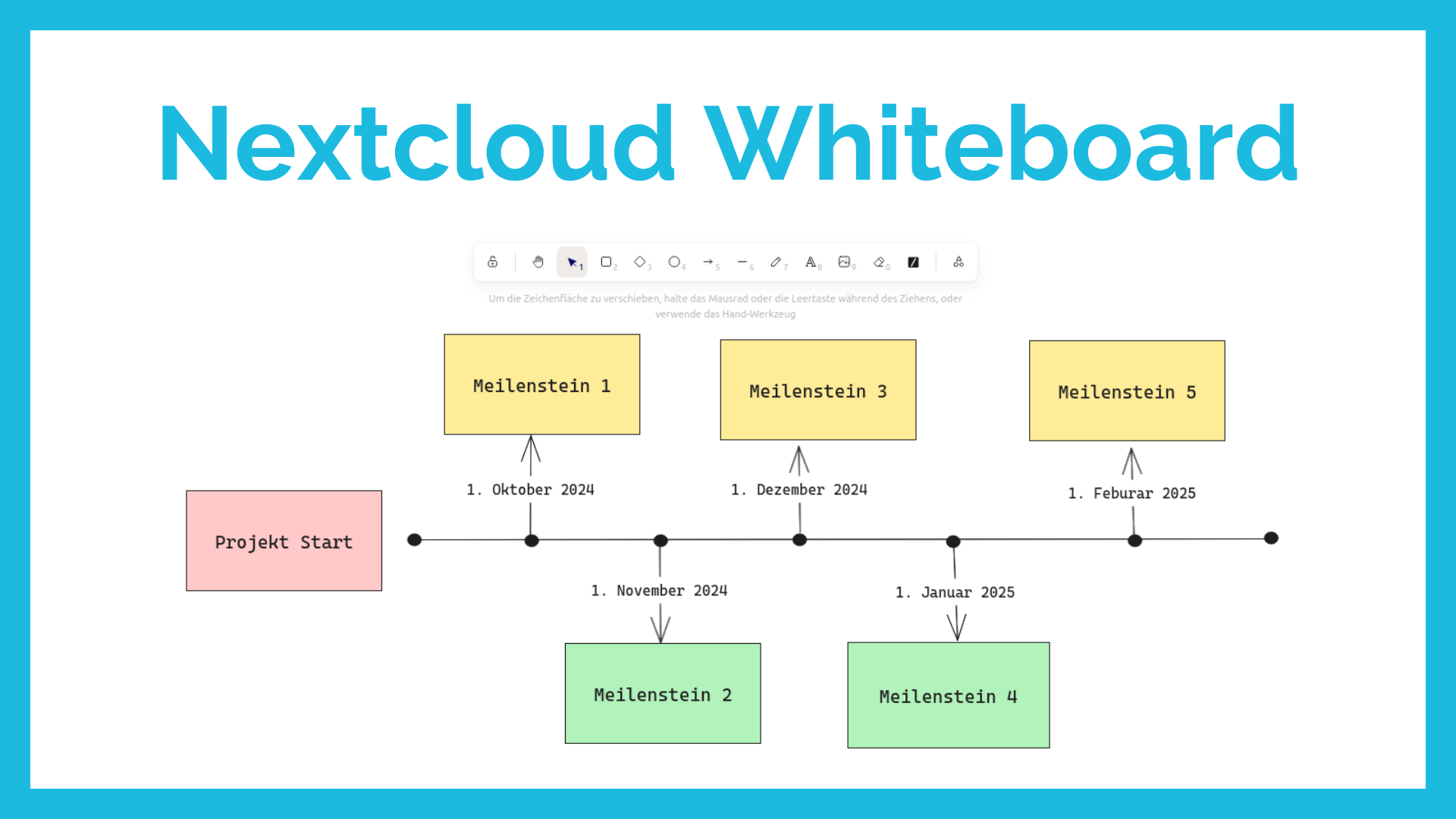
Nextcloud Whiteboard uses Excalidraw as its backend to integrate powerful drawing and sketching functions directly into the Nextcloud platform. This enables the use of Excalidraw‘s intuitive and flexible user interface and the seamless combination of Whiteboard with other Nextcloud services such as Files, Office, and Talk.

Installation
The installation of Nextcloud Whiteboard is done in two steps. First, log in to the Nextcloud web interface with an administrator account, click on the icon in the upper right corner, and then on Apps.
Then enter “Whiteboard“ in the search bar and click on “Download and activate“.
For the second step, you need direct access to the server on which your Nextcloud is running. Here, the backend must be installed with Docker. You can find instructions for this here:
https://github.com/nextcloud/whiteboard
For all PathConnect customers, this installation is of course taken care of.
After the complete installation, a new whiteboard can be created by clicking on “+ New“ in the file view and then on “New Whiteboard“.

Features
Nextcloud Whiteboard offers numerous features, the most important of which are presented below.
Sharing and Collaboration
To be able to edit a whiteboard together with others, you must first share it. To do this, click on the three dots in the upper right corner and then on “Open sidebar“. The usual sidebar opens with all the options that you also know from other files. Click on “Share“ and either enter a username or create a public link.
Drawing Shapes
In addition to arrows and lines, Nextcloud Whiteboard also offers various shapes such as squares, diamonds, and circles. To add a new shape, select the corresponding element and drag it with the mouse to the desired size on a free area.
Smart Picker
With the Nextcloud Smart Picker, you have the option of inserting other content from your Nextcloud directly into the whiteboard. For example, you can add a text document by clicking on “Files“ and selecting a document.
Laser Pointer
With the laser pointer, you can highlight content in a presentation. To activate the laser pointer, click on the symbol on the far right of the toolbar and select “Laser pointer“. A red line appears on the area over which you move with the left mouse button pressed.
Changing Background Color
To change the background color, click on the bars in the upper left corner to either select a predefined color or enter a custom color using the hex code.
Inserting Images and Text
You can enhance your whiteboard with images and text. To insert text, click on the “A“ symbol in the toolbar, and for images, click on the “Image“ symbol.
Export as Image
If you want to export your whiteboard as an image, you can do this by clicking on the three lines in the upper left corner and then selecting “Export image...“.
Open Source Software at PathConnect
Simply select and get started. We customize the software exactly to your needs, take care of maintenance, and provide you with personal support. Our offer includes a variety of open-source solutions that can be perfectly tailored to your requirements. Enjoy the comfort of an all-around service that includes installation, customizations, and updates, so you can focus entirely on your projects.
Related Articles
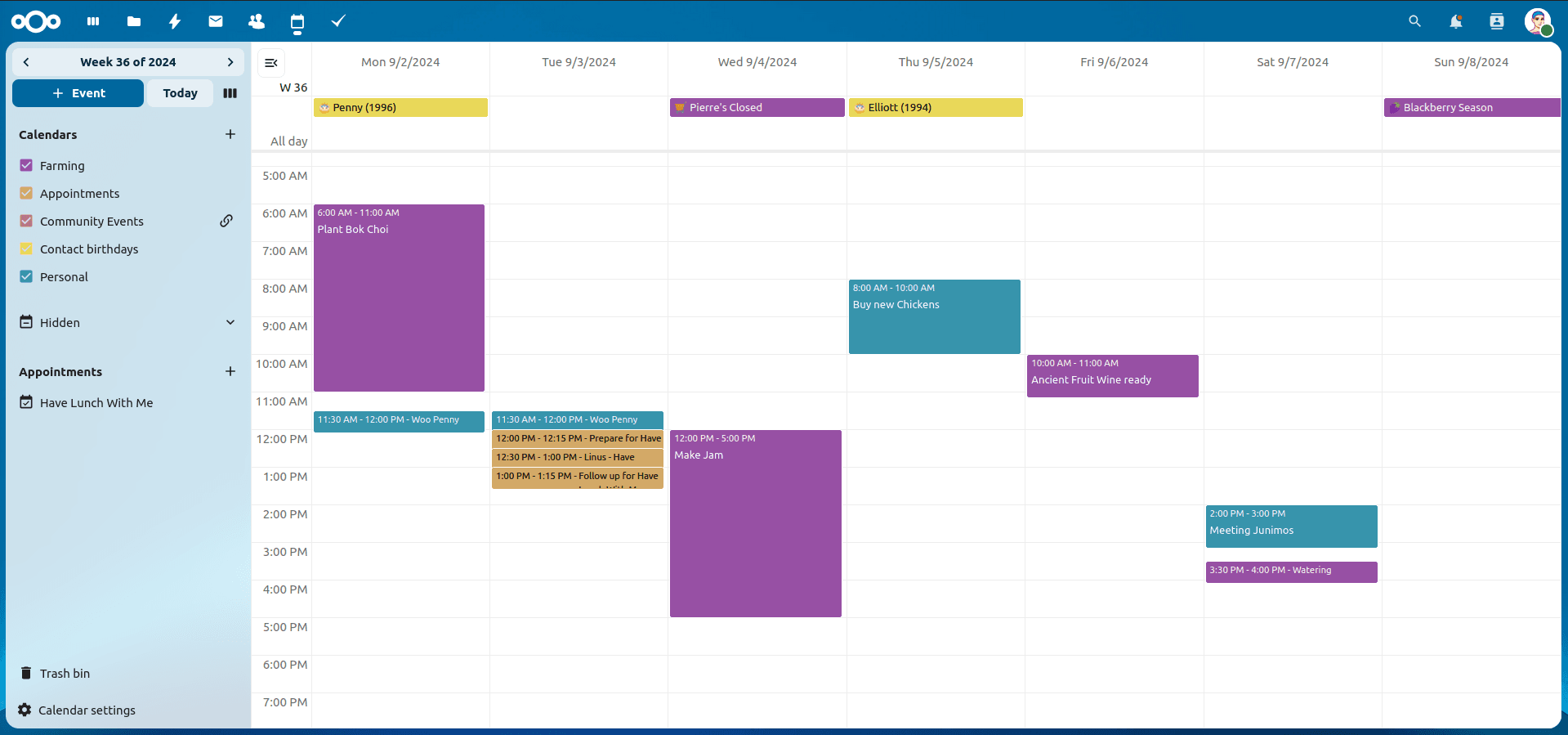
Nextcloud Kalender – Die wichtigsten Funktionen im Überblick
Der Nextcloud-Kalender ermöglicht dir eine einfache und datenschutzfreundliche Organisation von Terminen, Meetings und Ressourcen. Im Folgenden stellen wir dir die zentralen Funktionen vor, die deine tägliche Zusammenarbeit erleichtern.
Paperless-ngx: OAuth2 für Microsoft 365 einrichten
Paperless-ngx kann Anhänge aus E-Mail-Postfächern automatisch verarbeiten. Damit dies auch mit einem Microsoft 365 Konto funktioniert, müssen einige Einstellungen vorgenommen werden. In diesem Artikel zeigen wir, was zu tun ist, damit die Anbindung funktioniert.

Mailcow DNS-Einstellungen
Die richtigen DNS-Einstellungen sind ein entscheidender Faktor, damit dein Open Source Mailserver Mailcow einwandfrei funktioniert. In diesem Artikel erfährst du, welche Einträge du vornehmen musst und was sie bewirken.